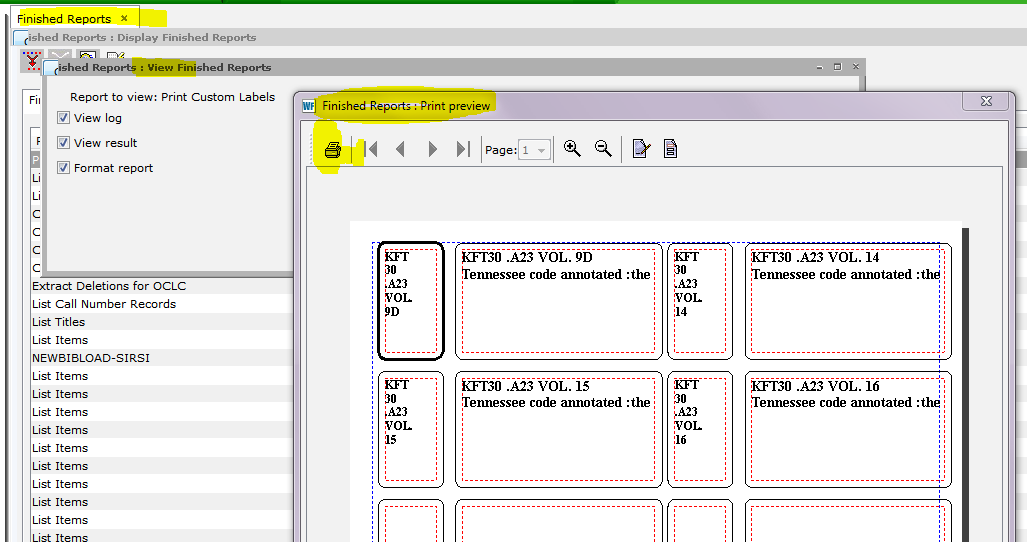
How to print labels in SIRSI
How to print labels in SIRSI
On the left side menu (under Common Tasks) click on Schedule a new report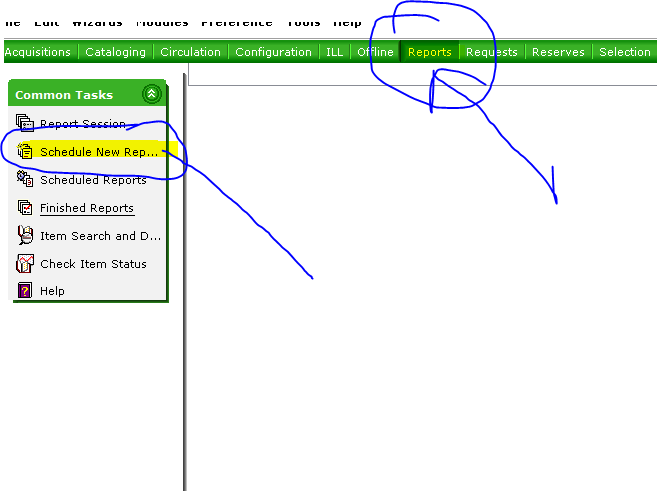
Then go to the Bibliographic tab and click on the Print Custom Labels report 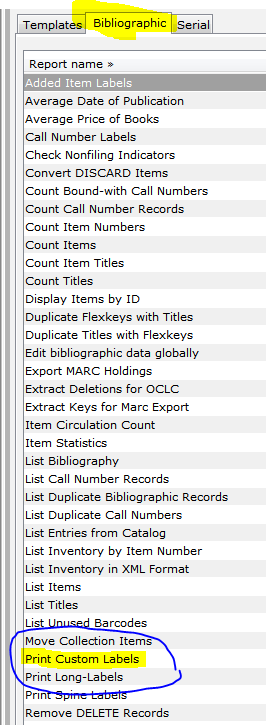
Bottom of the screen click Setup and schedule
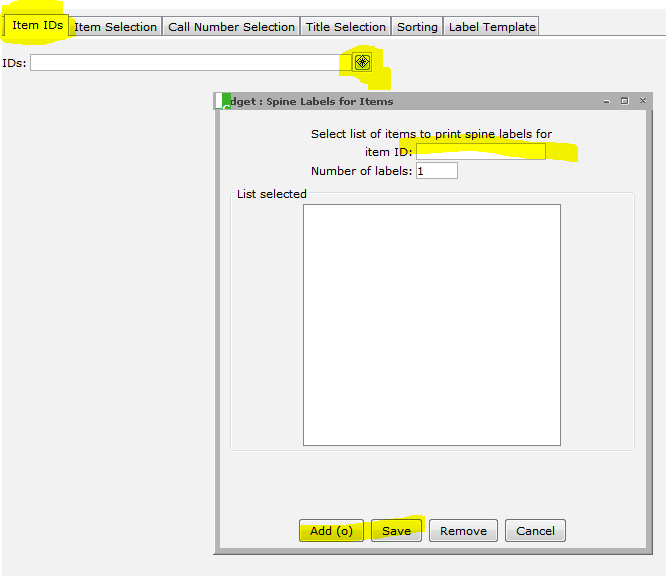
The Item IDs tab is where you scan the ID numbers of the items needing labels. Make sure you click save when you are done scanning the items that need labels. (Scan all of the items, one after another and then click SAVE.)
The Label Template tab is where you choose the template to use. Use the drop down menu and the one that is called SirsiDynixDemcoBibTemplate
Then at the bottom of the screen click the Run Now button. 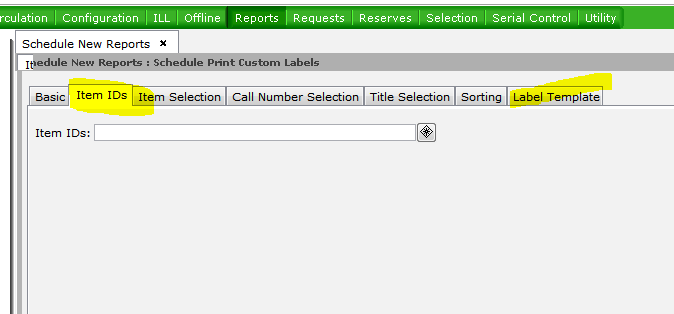
Then go to Reports and find Finished Reports. Click on the Finished Report and click OK. Then click on the printer icon to choose the printer you want to use. Put the label sheet(s) in the printer .